Python code execution via Python files
Python code can be written in “.py” files, which can be executed from the command line.
We can do this with the simple file hello.py in this folder, which you can execute in the terminal via python hello.py.
Python code execution via Jupyter Notebooks
JupyterLab is a web-based interactive environment for computational notebooks. Especially in data analysis, Jupyter Notebooks / JupyterLab are often used to run Python code, to document what the code does, visualize data, plot analysis results, and add additional explanations and links to resources.
Cell types
A Jupyter Notebook consists of the following cell types:
Markdown for documentation, explanations, etc. (you are reading one right now)
Code to execute code supported by the kernel, e.g. Python or R
Raw does not get evaluated by the kernel, can be used to include, e.g., other code for documentation (Java, LaTeX, etc)
Executing Code in Notebooks
To execute your first Python code in a notebook, complete the code in the code cell below.
You can double-click in this cell, change the code and execute it by hitting SHIFT+ENTER:
# Complete the command to print hello world
print('')
You can also use code cells to run commands on the underlying terminal by using the prefix !.
Let’s execute the python script hello.py from here:
!python hello.pyHello, World!
We can also call uv from here to list all installed dependencies in this venv:
!uv treeMarkdown in Notebooks
Markdown is a coding language for describing the formating of text. To see the Markdown code which describes this text formatting, double-click this cell in your Jupyter Notebook. Hit SHIFT+ENTER to apply the formatting and return to the viewing mode.
Bullet point
More bullet points
Deeper bullet points
List entry
Another list entry in cursiv
Another list entry in bold
A list entry with a web link to Markdown Guide Cheatsheet
Keyboard shortcuts
When working with Jupyter Notebooks, you can make use of several OS-dependent keyboard shortcuts.
You can view them all in the menu above Help > Show Keyboard Shortcuts, e.g.:
Execute a cell (run code, or format Markdown text):
SHIFT+ENTERIf you want to “leave” a cell without executing it:
ESCAPE.You can add a new cell above / below the current cell:
A/B.You can delete cells: double
D.
Try it out!
Pitfalls when working with Jupyter notebooks
You can execute the same cell in Jupyter Notebooks multiple times.
This may lead to Notebooks which make no sense to the reader.
a = 5
b = 5

print('a:', a)
print('b:', b)
a: 5
b: 5
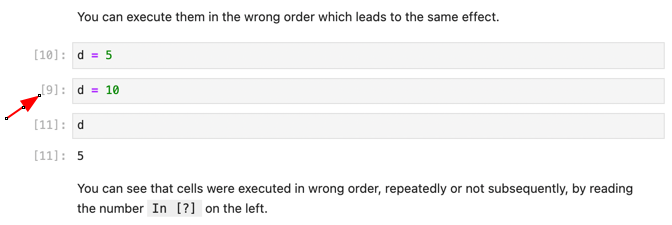
a = a + 1a + b18You may also execute them in an unintended order or overwrite variables, which will have the same effect.
d = 5d = 10d5You can see that cells were executed in the wrong order, repeatedly or not subsequently, by reading the number [?] left to the cell.
Tip: When your notebook is ready, click on menu Kernel > Restart & Run All Cells to make sure all cells in the notebook are executed once in the right order.