
JupyterLab and Jupyter Notebooks#
Python code execution via Python files#
Python code can be written in “.py” files, which can be executed from the command line.
We can do this with the simple file hello.py in this folder, which you can execute in the terminal via python hello.py.
Python code execution via Jupyter Notebooks#
JupyterLab is a web-based interactive development environment for notebooks, code, and data. Especially in data analysis, Jupyter Notebooks / JupyterLab are often used to run Python code, to document what the code does, visualize data, plot analysis results, and add additional explanations and links to resources.
Cell types#
A Jupyter Notebook consists of two primary cell types:
Markdown Cells for documentation, explanations, etc. (you are reading one right now)
Code Cells to run Python code
To execute your first Python code, complete the code in the code cell below.
You can double-click in this cell, change the code and execute it by hitting SHIFT+ENTER:
# Complete the hello world
print()
Keyboard shortcuts#
When working with Jupyter Notebooks, you can make use of several OS-dependent keyboard shortcuts.
You can view them all in the menu above Help > Show Keyboard Shortcuts, e.g.:
Execute a cell (run code, or format Markdown text):
SHIFT+ENTERIf you want to “leave” a cell without executing it:
ESCAPE.You can add a new cell above / below the current cell:
A/B.You can delete cells: double
D.
Try it out!
Markdown in Jupyter Notebooks#
Markdown is a coding language for describing the formating of text.
To see the Markdown code which describes this text formatting, double-click this cell in your Jupyter Notebook.
Hit SHIFT+ENTER to apply the formatting and return to the viewing mode.
Bullet point
More bullet points
Deeper bullet points
List entry
Another list entry in cursiv
Another list entry in bold
A list entry with a web link to Markdown Guide Cheatsheet
Pitfalls when working with Jupyter notebooks#
You can execute the same cell in Jupyter Notebooks multiple times.
This may lead to Notebooks which make no sense to the reader.
a = 5
b = 5
a = a + 1
a + b
15
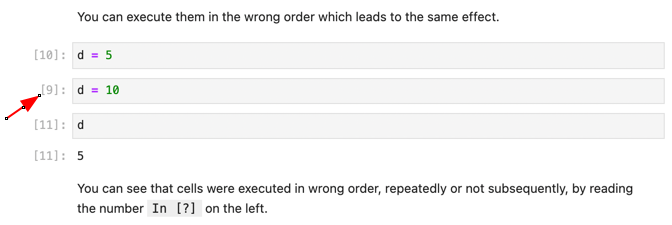
You may also execute them in an unintended order or overwrite variables, which will have the same effect.
d = 5
d = 10
d
5
You can see that cells were executed in the wrong order, repeatedly or not subsequently, by reading the number [?] left to the cell.
Tip: When your notebook is ready, click on menu Kernel > Restart & Run All Cells to make sure all cells in the notebook are executed once in the right order.